How to Use SCAR Toolkit for Age of Empires IV
This page explains exactly how to use each tab of SCAR Toolkit: Online (overlays, ESP, AI assistant), Offline (sandbox tools), SCAR / Lua Runner (custom scripts) and Settings.
SCAR Toolkit is a PC companion for Age of Empires IV focused on practice, testing and scripting. Use it like a lab:
- Overlay extra HUD info, scores and minimap ESP while you play.
- Use an AI assistant to help with villagers, upgrades, scouting and relics.
- Run offline sandbox tools to spawn armies, unlock tech, and test ideas quickly.
- Inject your own SCAR/Lua scripts with the built-in editor and runner.
- Tune hotkeys, language, theme and quick-slots for your favourite tools.
The goal is not to “play the game for you”, but to test builds, train macro and debug scripts faster than a normal ladder match would allow.
Download SCAR Toolkit SCAR & Lua Scripting Reference AoE4 Data Hub (JSON Browser)
Online – Overlays, ESP & AI Assistant
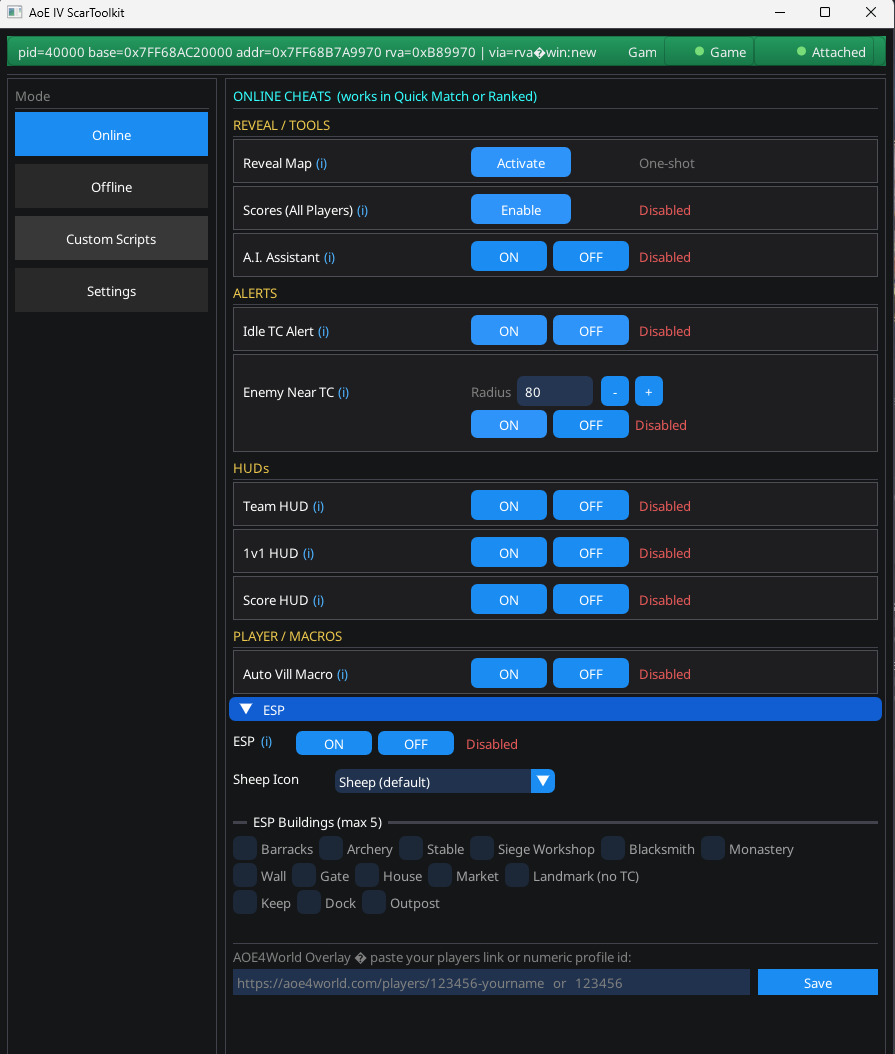
As this is all Lua/SCAR code, you must wait about 3–4 seconds between activating features.
If you spam toggles (for example: enabling multiple functions instantly back-to-back), the AoE4 SCAR engine can overload and crash the game.
Late game warning: in 3v3 or 4v4 with huge armies, avoid turning on new features in the middle of big fights – the game is already heavy, and adding new Lua logic at that moment increases the chance of a crash.
What Online mode does
Online mode is your real-time HUD: it reads the current game state and overlays information on your screen or minimap while you play. It includes:
- Score and Score HUD overlays
- Team HUD and 1v1 detailed HUD
- Minimap ESP (sheep, TCs, landmarks, etc.)
- Auto Villager Macro helpers
- AoE4World rating overlay
- AI Assistant for villagers / upgrades / relics
Score, Score HUD, Team HUD & 1v1 HUD
Score & Score HUD
- Score – enables the in-game score style view.
- Score HUD – shows an extra score panel on the top right corner.
You can pick whichever style you prefer – it’s the same score logic, just a different way of displaying it.
Team HUD
- Shows team-wide information: resources, population, and key stats for all players.
1v1 HUD
- Built specifically for 1v1.
- Shows extremely detailed information about your opponent – often more detail than your opponent sees in their own standard UI.
- Best used in custom / training games to study timings, eco, and army patterns.
Auto Villager Macro
Auto Villager Macro needs to know which group your Town Centers are on. SCAR Toolkit assumes control group 4.
- Select all your Town Centers, then press Ctrl + 4 to bind them to group 4, or
- In the AoE4 hotkey settings, set “Select all Town Centers” to 4.
Once all your TCs are on group 4, Auto Villager Macro can safely manage TC-related logic.
Minimap ESP (inside Online tab)
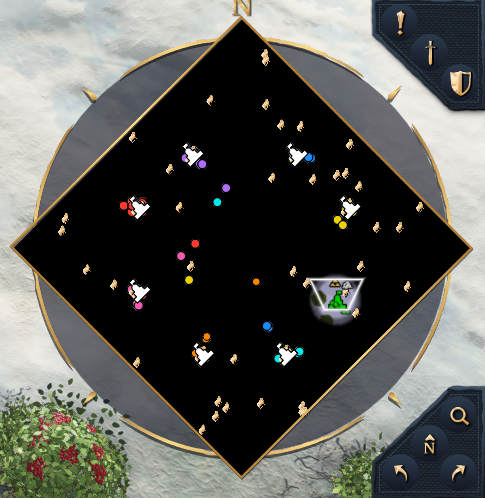
The ESP system is a visual debug + awareness tool bound to Online mode. It can:
- Show sheep icons so you can see exactly where all sheep are.
- Highlight enemy and allied Town Centers with safe/danger radius rings.
- Mark landmarks and key buildings on the minimap.
- Show normal ESP for enemy units.
Performance rules
- In team games, normal ESP is capped to ~250 enemy units to avoid heavy FPS drops.
- You can select up to 5 building types to display on the minimap as part of ESP.
Sheep ESP & Sheep Icon Colour
Sheep tools are simple: you toggle them ON/OFF. However:
- If the default sheep icon is hard to see, you can change it to another colour.
- Important: change the colour before you toggle the sheep ESP ON. If you try to change icon colour after it’s already running, it can crash the game.
AoE4World Overlay
AoE4World overlay shows opponent ladder info inside your HUD.
- Copy your AoE4World profile link.
- Paste it into the AoE4World text box inside SCAR Toolkit.
- Turn the feature ON.
When a match starts, it will attempt to display:
- Your opponent’s ELO
- Current rank
- Country/flag (if available on AoE4World)
AI Assistant (Villager / Upgrades / Relics)
You still control your army and villager. The AI Assistant is only for macro helpers.
The AI Assistant in Online mode does not play the whole game for you. You keep full control over military and decisions – the assistant only handles:
- Training villagers
- Auto upgrading key eco/military upgrades
- Auto scouting
- Auto collecting relics (if monks are available)
Very important behaviour warnings
- Auto scouting is dumb. It does not protect scouts well.
► Always collect all nearby sheep manually first, then enable the AI assistant. - Do not build an early Market or Outpost if you plan to use the AI in competitive games – it will invest heavily into Stone and can ruin your build.
- Do not build a Dock if you intend to use the Assistant seriously – it will dump resources into transport ships and water units you might not want.
These warnings matter mostly if you try to use the AI Assistant in competitive matches. For pure testing or memes, you can ignore them – but don’t be surprised by weird water/stone spending.
Giving AI Full Control of Your Player
If you want the built-in AoE4 AI to take full control of your player instead of just assisting, you can run this script in the Custom Script – SCAR / Lua Runner tab:
function Configure()
    Game_AIControlLocalPlayer()
    AI_SetDifficulty(Game_GetLocalPlayer(), 6)
end

Rule_AddOneShot(Configure)
This hands your player slot to the game AI at difficulty 6. Use it only if you genuinely want to watch AI play for you (e.g. testing or fun runs).
Offline – Sandbox & Rate Modifiers
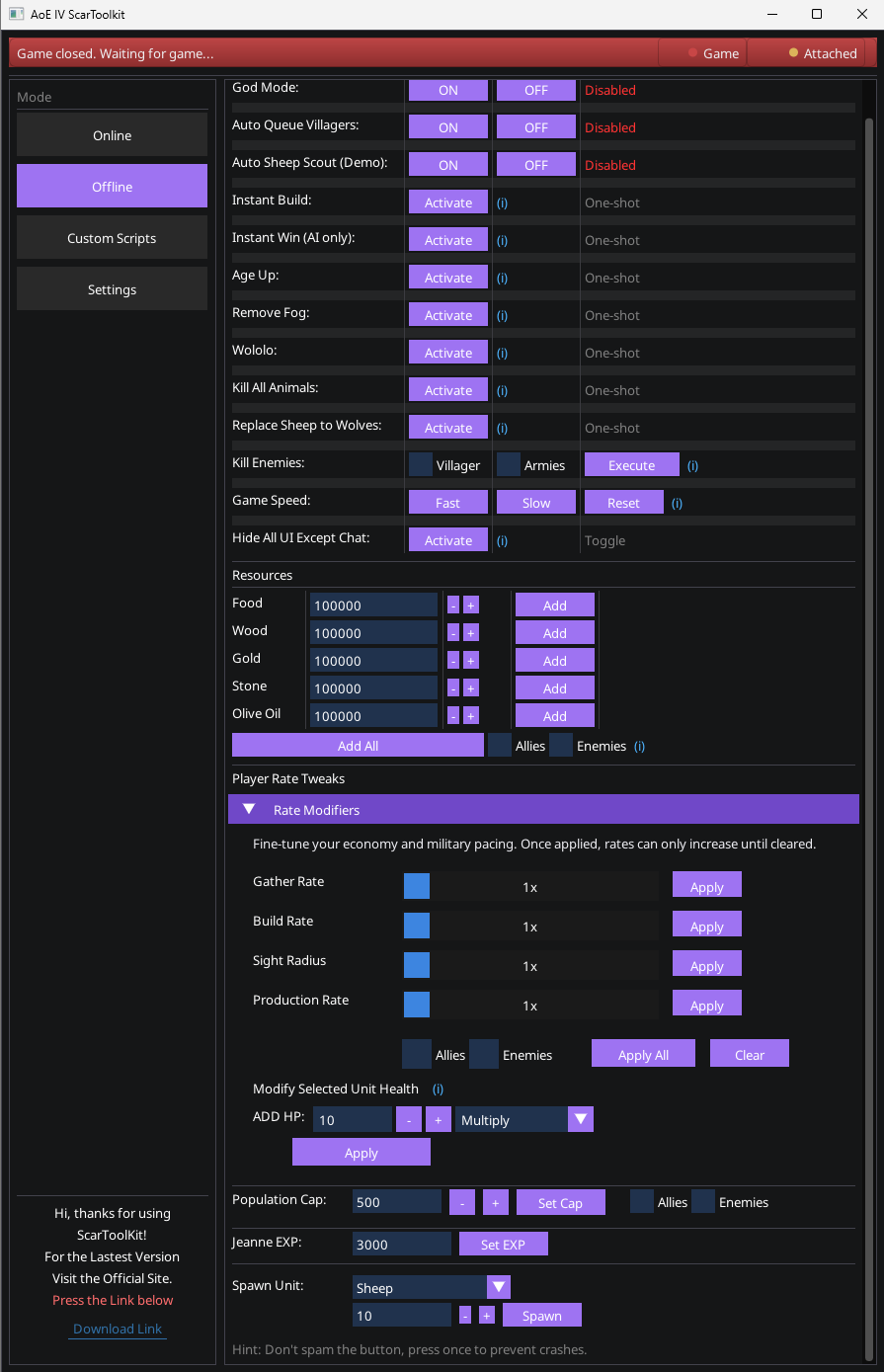
The Offline tab is where you go to mess around freely: spawn units, give yourself resources, buff armies, test late-game fights, etc. Almost everything here is intended for single-player / vs AI / custom only.
Do not spam buttonsMost Offline tools are “one-shot” Activate buttons.
The (i) tooltip next to each button explains what it does. Because everything still runs through the AoE4 Lua engine, do not spam multiple buttons at once:
- Trigger a feature
- Wait a moment to let it finish
- Then trigger another
If you activate too many heavy features in the same second, the game can crash.
General Offline Tools
The Offline tab contains a large collection of experiments. If one does not work on a particular patch or scenario, you can simply try a different one. Typical tools include:
- Instant eco / tech unlocks
- Unit and landmark spawning
- God mode / invulnerability experiments
- Economy or timing shortcuts
- Scenario-style helpers for testing army comps
Rate Modifiers (HP / Range / Damage / Walk Speed)
How to use Rate Modifiers correctly
- Step 1 – Select your units in the game.
- Step 2 – Choose the Rate Modifier you want to apply in SCAR Toolkit.
- Step 3 – Apply.
For the four main modifiers:
- HP – increase unit hit points.
- Range – extend attack range (where applicable).
- Damage – increase attack damage.
- Walk Speed – speed up movement.
You must have units selected before applying these. They are not global toggles.
Custom Script – SCAR / Lua Runner
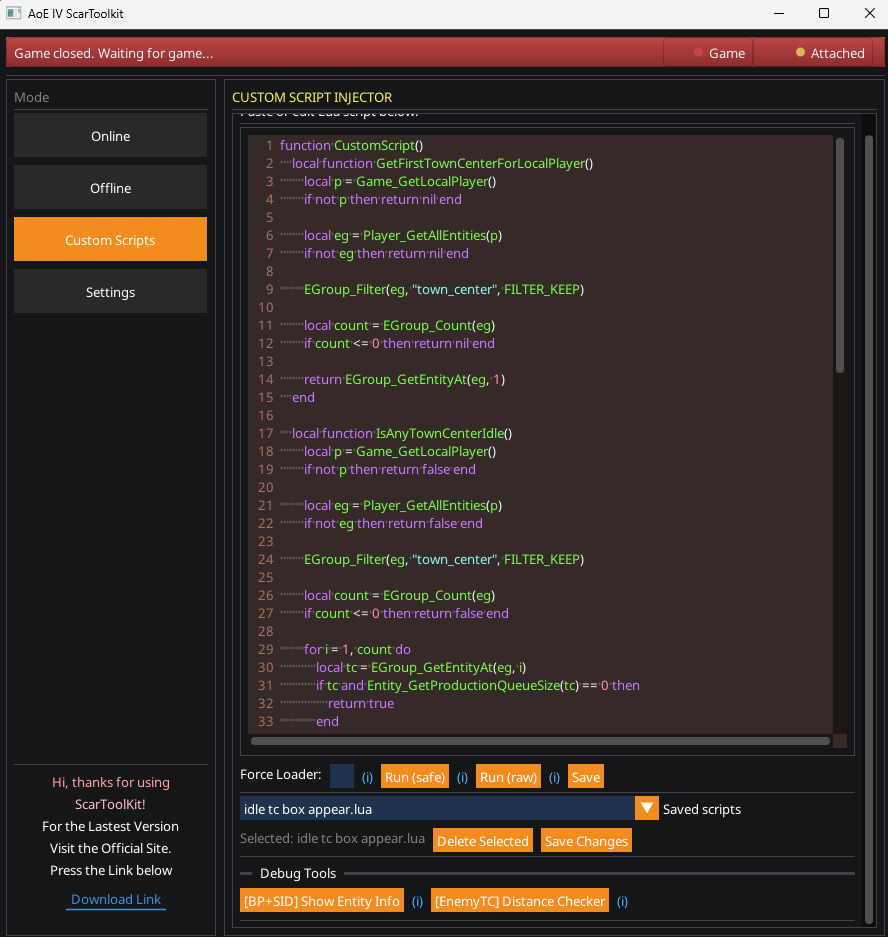
The SCAR / Lua Runner tab is for users who are comfortable writing or editing code. You can:
- Write and save SCAR/Lua scripts.
- Inject them into the current game session.
- Use helper tools to debug entities, distances and player info.
Basic Script Pattern
Most simple scripts follow this structure:
function CustomScript()
    -- your SCAR / Lua code here
end

Rule_AddOneShot(CustomScript)
SCAR Toolkit injects this into the game and executes it once. From there you can add additional rules, timers and logic.
Run Modes: Force Loader, Run (Safe), Run (Raw)
Force Loader
Force Loader is designed for large scripts (roughly 200+ lines). Instead of sending one giant string directly to the game, it:
- Saves your script into a temporary .lua file.
- Then loads and runs that file inside the game.
This can be more reliable for big projects or complex modules.
Run (Safe)
Run (safe) wraps your code in pcall(). That means:
- Some errors are caught and prevented from blowing up the entire engine.
- There is less chance of an instant crash, but it is still possible if your code is heavy.
Run (Raw)
Run (raw) sends your script directly to the game with no pcall, no safety net. If there is a serious bug or infinite loop, it can crash the game instantly.
Use Run (raw) only if you know exactly what your script does.
Debug Tools
Show Entity Info
- Select a unit in-game.
- Use the Show entity info helper.
- It will read and display that entity’s internal info (IDs, blueprint etc.).
Distance Checker
- Checks distances relative to enemy Town Centers.
- Best used in a 1v1 skirmish where ownership is clear.
- Useful for testing “safe scouting radius”, siege ranges, etc.
Player Info
- Displays local player details on top of all Town Centers.
- Can show info for allies and enemies together.
Example: Giving AI Full Control
As mentioned in the Online tab, you can hand full control of your player to the AI using this code in the Script Runner:
function Configure()
    Game_AIControlLocalPlayer()
    AI_SetDifficulty(Game_GetLocalPlayer(), 6)
end

Rule_AddOneShot(Configure)
Run it with your preferred mode (Safe/Raw/Force Loader) and the game AI will take over your slot.
Settings – Quick Slots, Theme & Language
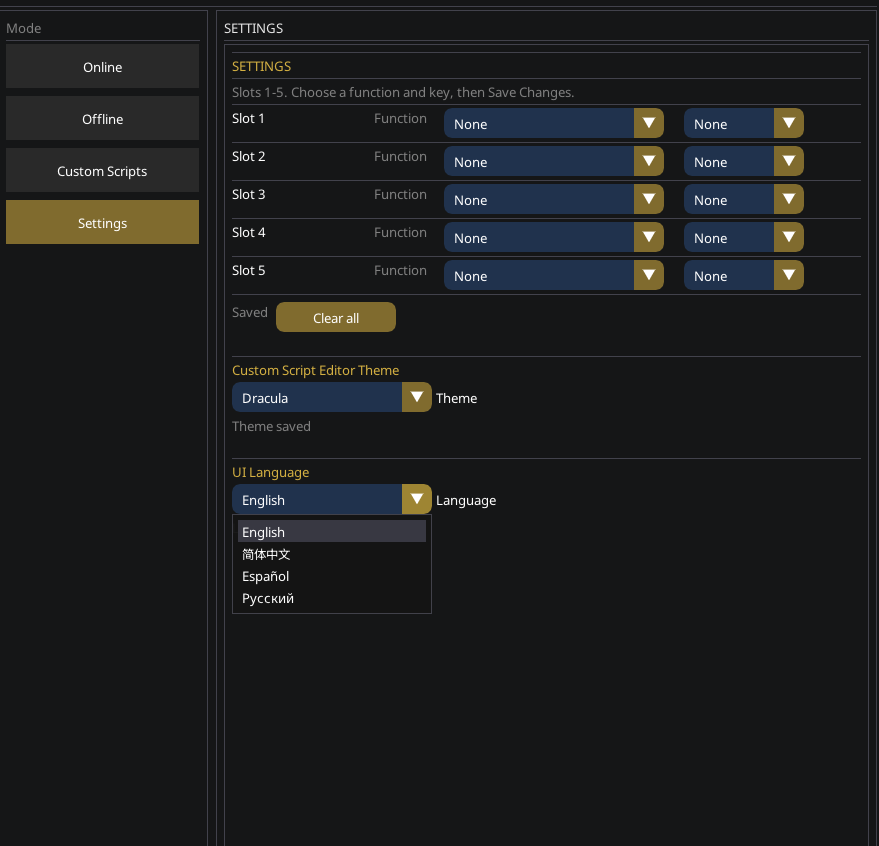
Online Quick Slots (5 Favourite Features)
The Settings tab includes 5 slots where you can save your favourite Online features. Think of them as presets for the tools you use every session.
- Pick up to 5 Online functions you use the most (e.g. 1v1 HUD, ESP, AoE4World, Score HUD, Auto Villager).
- Save them into the quick slots.
- Use these slots as fast toggles instead of hunting through every checkbox each time.
Custom Editor Theme
You can customise the built-in code editor to match your taste:
- Change theme colours (dark, contrast, etc.).
- Make long coding sessions more comfortable on your eyes.
Language Settings
SCAR Toolkit includes basic UI localisation for the editor and some labels. Currently supported languages are:
- English (default)
- Spanish
- Chinese
- Russian
Select your preferred language in Settings. Some advanced debug strings and script names may remain English.
Other Behaviour & Update Options
Depending on your build, Settings may also expose:
- How often the app checks for updates.
- How frequently it refreshes license status.
- Small quality-of-life toggles for notifications or logs.
Spend a few minutes here at the start. A good setup (theme, quick slots, language) makes the rest of SCAR Toolkit feel much smoother.